






If you manage a Google Workspace mailbox for work, you may eventually need to create a local copy of important emails. A mailbox can contain years of conversations, attachments, project records, invoices, client correspondence, and other business information. Downloading an entire mailbox when you only need messages from a particular project, client, or period can consume unnecessary time and storage.
A more practical approach is to create a selective Google Workspace email backup. Depending on your requirements, this can involve Google’s native export capabilities or a third-party backup application that provides more granular filtering and export options.
This guide explains the different approaches, when selective backup can be useful, how to choose an appropriate export format, and what security and verification steps you should consider when backing up Google Workspace emails on Windows 11.
Why Create a Selective Google Workspace Email Backup?
Not every backup requirement involves preserving an entire mailbox.
For example, you may only need emails relating to:
- A particular financial year
- A completed client project
- A specific customer or supplier
- An employee transition
- A defined date range
- Particular folders or labels
- Messages containing specific subjects or keywords
Selective backup can reduce the amount of unnecessary data being exported and make archived information easier to organize and retrieve later.
However, businesses with formal legal, regulatory, or records-retention obligations should ensure that any selective backup approach complies with their organizational policies and applicable requirements. A local email export should not automatically be assumed to constitute a compliant records-retention system.
What Can Google’s Native Tools Do?
Before using third-party software, it is worth understanding the tools available within Google’s ecosystem.
Google Workspace provides search capabilities that can help users locate messages using criteria such as sender, recipient, date, subject, labels, and keywords. This makes it relatively easy to identify the emails you want to preserve.
Depending on account permissions and organizational settings, Google also provides mechanisms for exporting account data.
However, finding messages and creating a structured local archive are different requirements.
If you need granular filtering combined with particular output formats, recurring backups, folder selection, or selective exports to local storage, you may need to evaluate whether Google’s native capabilities are sufficient for your workflow or whether a dedicated backup application is more appropriate.
When Might a Third-Party Google Workspace Backup Tool Be Useful?
A third-party backup application may be worth considering when you regularly need to:
- Export only emails within specific date ranges
- Filter messages by sender or recipient
- Select particular folders
- Search or filter according to subjects or keywords
- Export messages into different file formats
- Archive multiple Google Workspace accounts
- Create recurring or incremental backups
- Store selected email data locally
The appropriate solution depends on the size of the mailbox, number of accounts, intended use of the archive, security requirements, and whether the emails may eventually need to be imported into another application.
Using BitRecover for Selective Google Workspace Email Backup
One third-party option is the BitRecover Google Workspace Backup Tool, which is designed to provide greater control over the information exported from Google Workspace accounts.
For users who need to backup Google Workspace emails on Windows 11, one potentially useful capability is date-range filtering.
Instead of processing years of mailbox data, users can define a beginning and ending date and target messages within that period.
This can be useful when archiving emails associated with a particular financial year, project, business engagement, or other defined timeframe.
According to the software provider, additional filtering capabilities include criteria such as From, To, Subject, keywords, and folders. Combining filters can make an export more precise.
For example, rather than archiving every email received during 2025, a user could potentially narrow the export to correspondence involving a particular client during a specified period.
Users should verify the currently available filtering capabilities and workflow against the version of the software they intend to use before beginning a significant backup operation.
How to Create a Selective Google Workspace Backup
Although the exact interface and steps can change between software versions, a typical selective backup workflow involves the following stages.
Step 1: Install the Backup Application
Install the appropriate version of the backup software on your Windows 11 computer.
Before installing third-party software on a business device, make sure its use is permitted under your organization’s IT and information-security policies.
Step 2: Connect the Google Workspace Account
Connect the required Google Workspace mailbox using the authentication method supported by the application.
Pay particular attention to the permissions being requested. Business users should understand what mailbox information the application can access before authorizing it.
Step 3: Select the Required Mailbox Data
Choose the folders or mailbox information you actually need to preserve.
Selective folder backup can help avoid exporting unnecessary information.
Step 4: Apply Filters
Depending on the available software capabilities, filters may include:
- Date range
- Sender
- Recipient
- Subject
- Keywords
- Folders
Using multiple criteria can make the resulting archive considerably more focused.
Step 5: Choose an Export Format
Select an output format based on how you intend to use the archived messages.
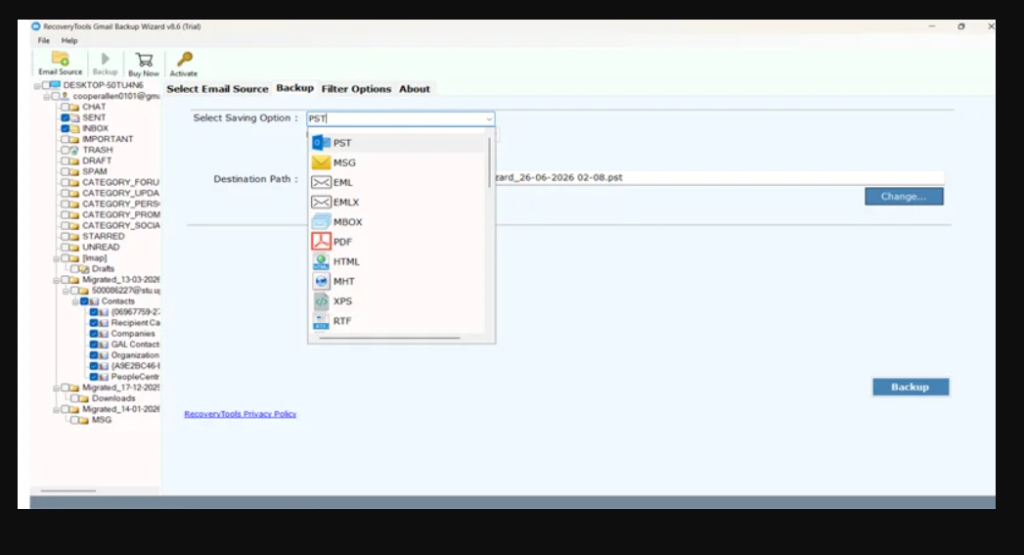
Possible formats offered by email backup applications can include PST, MBOX, EML, MSG, PDF, and HTML.
Step 6: Choose the Backup Destination
Select where the exported data will be stored.
This might be a local drive or approved external storage, depending on your organization’s backup and security requirements.
Avoid treating an unprotected local folder as adequate long-term storage for sensitive corporate email.
Step 7: Start the Backup
Review the selected mailbox, filters, output format, and destination before beginning the export.
For a large mailbox, consider testing the process with a smaller set of messages first.
Step 8: Verify the Backup
Do not assume that a backup is complete simply because the application reports a successful export.
Open and inspect the resulting files to make sure the information you require has actually been preserved.
Choosing Between PST, MBOX, EML, MSG and PDF
Choosing the right format is important because different formats serve different purposes.
| Format | Potential Use |
|---|---|
| PST | Useful when archived mailbox data needs to be accessed in compatible Microsoft Outlook environments |
| MBOX | Common mailbox format supported by various email applications and archival workflows |
| EML | Useful when individual email messages need to be stored as separate files |
| MSG | Useful for individual-message workflows involving compatible Microsoft applications |
| Useful for readable or shareable copies of selected messages | |
| HTML | Can provide browser-readable versions of exported email content |
There is no single best format for every backup.
If future mailbox migration is the objective, a mailbox-oriented format may be more appropriate than PDF. If the requirement is simply to preserve a human-readable copy of selected correspondence, PDF may be convenient.
Importantly, a PDF copy should not automatically be treated as equivalent to preserving the original email and all of its associated metadata.
What Information Should an Email Backup Preserve?
Saving only the visible message text may not be sufficient for many business purposes.
Depending on your requirements, you may also need:
- Sender and recipient information
- Dates and timestamps
- Subject information
- Attachments
- Formatting
- Inline images
- Hyperlinks
- Folder or label information
- Other relevant message metadata
According to BitRecover, its Google Workspace backup software supports preservation of various email attributes and multiple export formats. Users with specific archival, migration, legal, or technical requirements should verify exactly which attributes are retained in their chosen output format before relying on the exported data.
How Can Incremental Backup Help?
Repeatedly downloading an entire mailbox is inefficient when only a relatively small number of messages have changed since the previous backup.
Incremental or delta-style backup processes are intended to reduce this problem by processing new or changed information rather than unnecessarily repeating previously completed backup work.
According to the software provider, BitRecover offers a Delta/Incremental Backup capability for recurring backup scenarios.
This can potentially reduce:
- Duplicate processing
- Backup duration
- Local storage requirements
- Repeated downloads of previously archived messages
If incremental backup is important to your workflow, confirm how the feature identifies previously processed messages and what happens if the existing backup is moved, renamed, damaged, or deleted.
What Should You Check Before Using a Third-Party Backup Tool?
Email can contain some of an organization’s most sensitive information. Convenience should therefore not be the only consideration when choosing a backup application.
Authentication and Permissions
Understand how the application connects to Google Workspace and what account permissions it requests.
Avoid providing credentials to software without understanding how authentication is handled.
Organizational Authorization
Employees should verify whether they are permitted to export corporate email to a local device.
Some organizations restrict local copies of business communications.
Backup Location
Consider where the resulting archive will be stored.
Sensitive business email stored on an unsecured laptop, portable drive, or shared folder can create unnecessary information-security risks.
Encryption
Where appropriate, consider whether stored backup information needs to be encrypted or otherwise protected against unauthorized access.
Data Retention
Organizations may have rules governing how long particular communications must—or must not—be retained.
Creating independent local copies can interfere with established retention and deletion policies if it is done without authorization.
Privacy and Compliance
Emails may contain personal, financial, confidential, contractual, or regulated information.
Businesses operating under formal legal or regulatory requirements should ensure that their chosen backup process is consistent with applicable information-governance obligations.
How to Verify a Google Workspace Email Backup
Backup verification is one of the most important steps and is frequently overlooked.
After completing an export, check whether the archive contains what you expected.
Consider verifying:
- The expected date range
- Required folders or labels
- Representative messages
- Sender and recipient information
- Attachments
- Message formatting
- Required metadata
- File readability
- Searchability, where relevant
- The integrity of the storage destination
If the archive is intended for future migration or recovery, consider testing whether representative messages can actually be accessed or imported through the intended destination application.
A backup that cannot be reliably opened or restored may provide little practical protection.
Should You Keep More Than One Backup Copy?
For important business information, relying on a single local copy can create another point of failure.
A laptop drive can fail. An external storage device can be damaged or lost. Files can also be accidentally deleted or corrupted.
Where organizational policy permits, important archives may therefore require an appropriate backup strategy involving more than one protected storage location.
The precise approach should reflect the sensitivity of the information, business requirements, organizational IT policies, and applicable retention obligations.
Frequently Asked Questions
Can I backup only selected Google Workspace emails?
Yes. The available method depends on the tools being used. Search criteria can help identify selected messages, while some third-party backup applications provide additional filters for creating more targeted exports.
Can I backup Google Workspace emails by date?
Some backup applications provide date-range filtering that allows users to specify a start and end date. This can be useful for project-based or annual archives.
Which format should I use for an email backup?
It depends on the intended use. PST or MBOX may be more appropriate for certain mailbox and migration workflows, while EML or MSG can be useful for individual messages. PDF may be convenient when human-readable copies are the primary requirement.
Is PDF a complete email backup?
Not necessarily. PDF is useful for preserving readable content, but it may not retain the same structure and metadata as an email-native or mailbox format. The required format should therefore be chosen according to the purpose of the archive.
Should I use a third-party Google Workspace backup tool?
That depends on your requirements. Google’s native capabilities may be sufficient for some users. Third-party applications can be useful where more granular filtering, multiple output formats, recurring backups, or other specialized capabilities are required.
For business accounts, security, authentication, organizational authorization, and data-governance requirements should be evaluated before using third-party software.
How do I know whether my backup worked?
Verify the exported files rather than relying only on a completion notification. Check representative messages, attachments, dates, folders, metadata, and file accessibility. If the backup is intended for restoration or migration, test that workflow where practical.
Final Thoughts
Backing up selected Google Workspace emails can be more efficient than exporting an entire mailbox when only a particular project, client, date range, or business period needs to be preserved.
Google’s native tools may be sufficient for some requirements, while organizations needing more granular filtering, multiple export formats, batch processing, or recurring selective backups may consider third-party software such as BitRecover Google Workspace Backup Tool.
Whichever approach you choose, the most important considerations extend beyond speed and convenience. Authentication security, data integrity, backup verification, storage protection, organizational policies, and future accessibility should all be considered before relying on an email backup for long-term business use.
A successful Google Workspace backup is not simply one that completes—it is one that preserves the information you need, protects that information appropriately, and allows you to retrieve it reliably when required.










Leave a Reply